How to install Cursor integration for codebase understanding?
Last updated: June 12, 2026
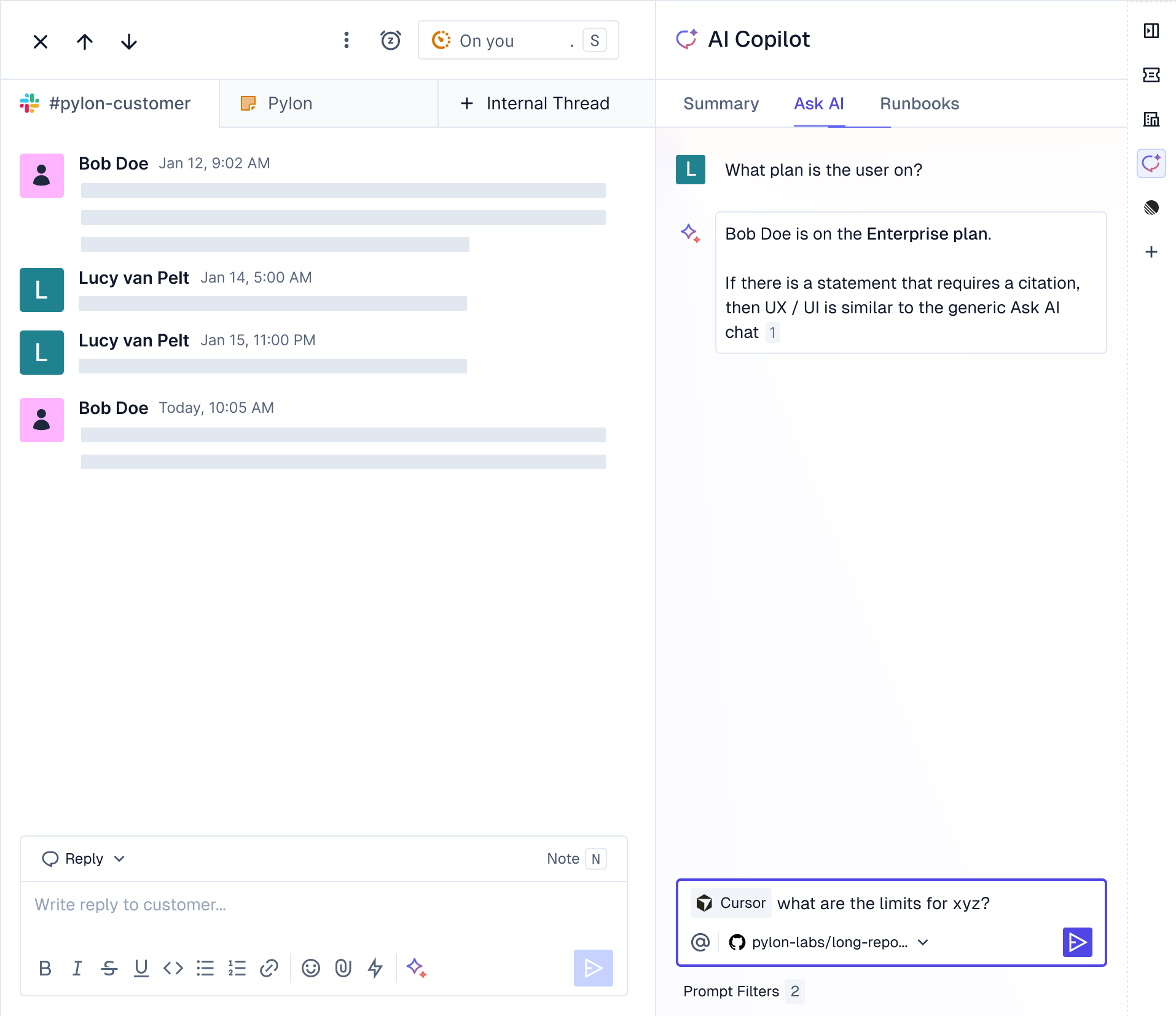
Use Cursor to investigate customer support issues directly from your codebase. When working on a support ticket, mention @cursor in AI Search to launch an agent that analyzes your code repository in context of the customer's issue.
Before connecting Cursor to Pylon
Ensure your Cursor account is already connected to GitHub or GitLab and that you can successfully launch a code agent in Cursor. This verifies your repositories are accessible before integrating with Pylon.
Make sure you set your cloud agent settings on the account that will used for the integration.
If you don’t want the cloud agents to create pull requests, set the “Create PRs” option to “Never” in your Cursor cloud agent settings.
To connect Cursor to Pylon
Click "Connect" to begin the setup process. You must be a Pylon admin to configure Cursor for your organization.
Enter your Cursor API key. You can find this in your Cursor settings.
If you don't have a Cursor API key, press "New User API Key" to create a new key. Make sure to save the api key as you won't be able to get the value again after creating it.
Select a default repository for Cursor to analyze when investigating issues.
Choose a default AI model to use for code analysis.
Once connected, mention @cursor in AI Search while viewing an issue to launch a code investigation.