How can I tell what the customer portal will look like for my customer?
Last updated: February 27, 2026
As a vendor, you cannot directly log in to your own customer portal. However, you can preview it to better understand the end-user's experience:
From the Accounts Page:
Navigate to the Accounts page in your Pylon Workspace
Select the specific account you want to preview
Go to the Overview tab for that account
Look for the "View Customer Portal" button in the upper right
From the Settings page:
Navigate to the Customer Portal Settings page in your Pylon Workspace
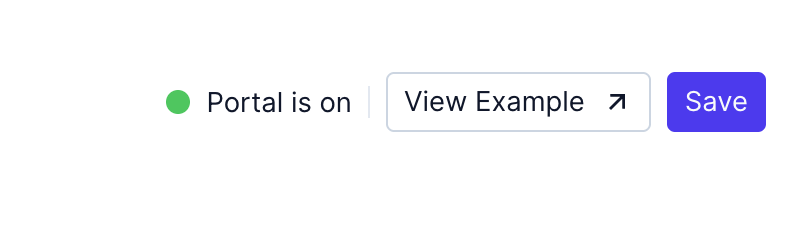
Select "View Example" button in the upper right corner
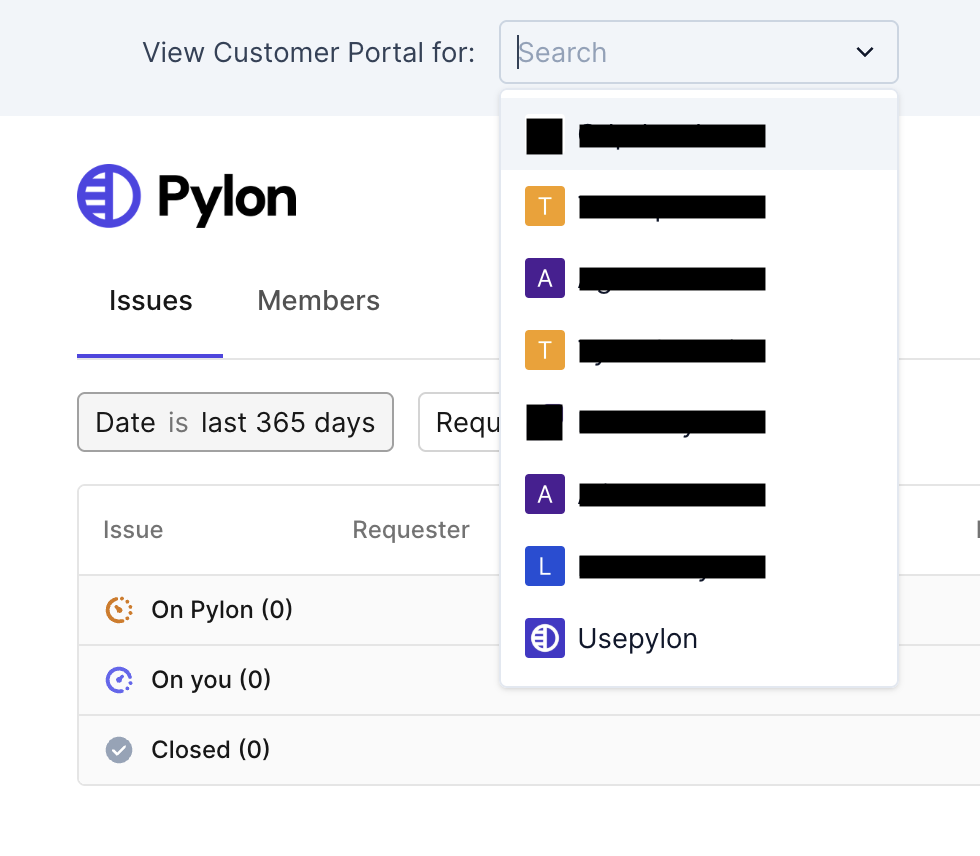
From the "View Customer Portal for:" dropdown, select the account you'd like to test and toggle between different organizations easily.
By default, the Portal will allow you to copy the link to that specific customer's portal from the "copy customer link" in the upper right corner
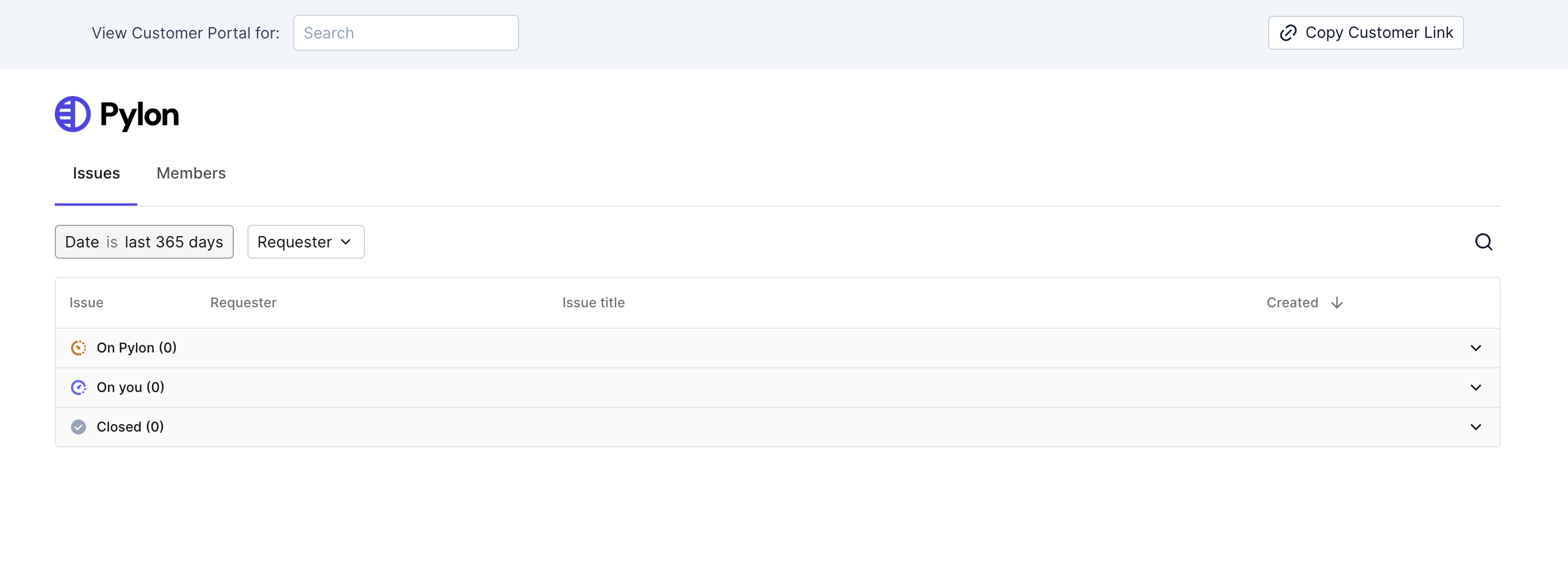
Note: this is just a preview of the portal, users on your team cannot interact with issues from this preview (e.g. send issue messages, make changes to issue fields, etc.). Your team should interact with issues from the web app at app.usepylon.com