How does the Slack Agent work?
Last updated: July 13, 2026
The Slack Agent lets your internal team interact with Pylon directly from Slack — ask questions about your product, look up customer context, and take actions without leaving Slack.
Note: If your organization has renamed the Pylon app, the Slack Agent will appear under your custom name (e.g. "Acme Support" instead of "Pylon").
How to use it
There are two ways to start a conversation with the Slack Agent:
@mention in a channel: Type @Pylon in any internal Slack channel followed by your question. If Pylon isn't in the channel yet, Slack will prompt you to add it.
DM: Find Pylon in your Slack Apps section and send it a direct message. To enable this, an admin will need to reinstall the Slack app.
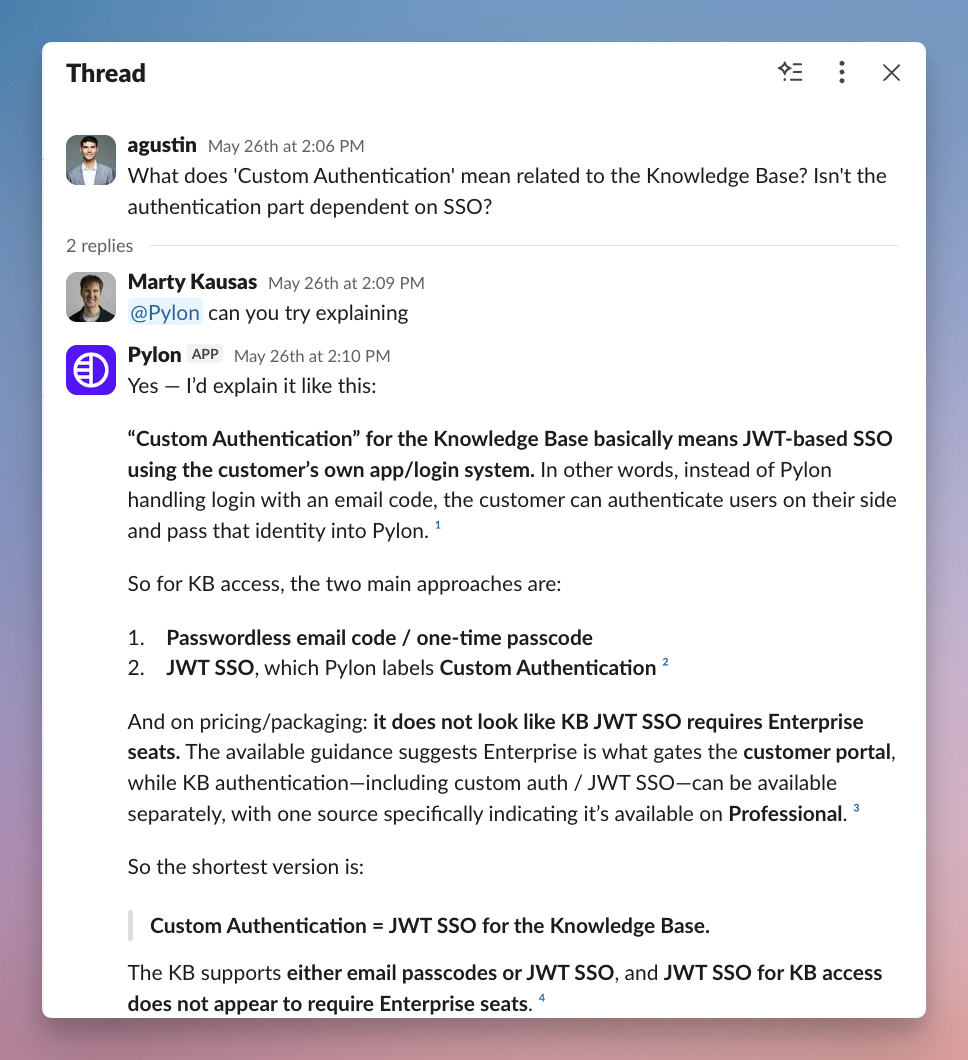
Answer questions about your product
The Slack Agent can answer questions about your product using your past tickets, knowledge base, docs, and any other connected resources. This is especially useful for teams outside of support who need quick answers to questions.
Example use cases:
A sales rep asks how a feature works before a customer call
A solutions engineer asks about pricing or packaging details
A teammate asks about a product limitation or known workaround
Answer questions about your customers
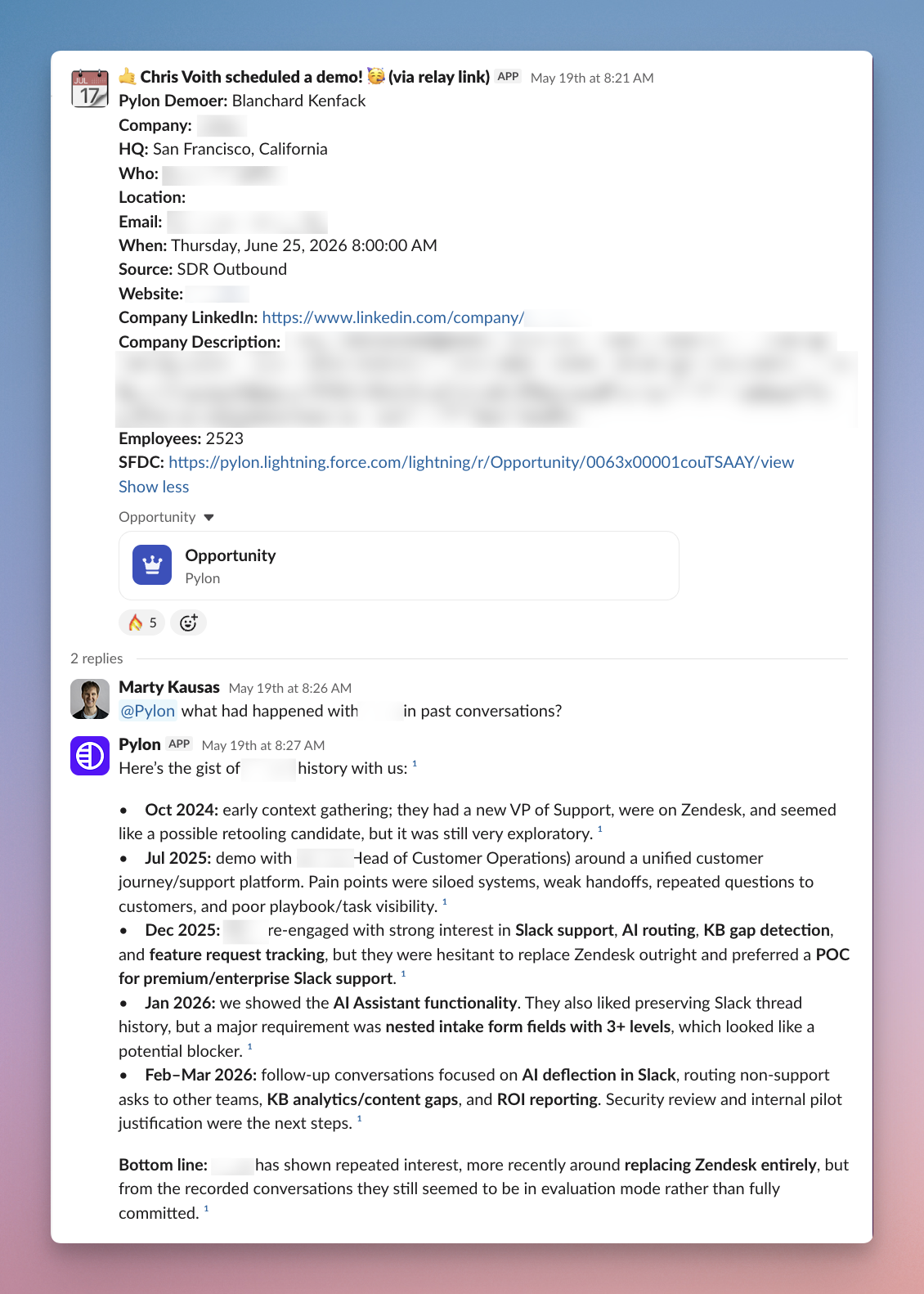
The Slack Agent has access to your Pylon data — past issues, calls, emails, internal conversations, CRM data, and more so Pylon can answer your customer questions directly in Slack.
Example use cases:
Get a quick account summary while in a deal channel
Look up open issues for a customer before a meeting
Check account health scores or recent activity
Find the main contact at an account
Take quick actions in Pylon
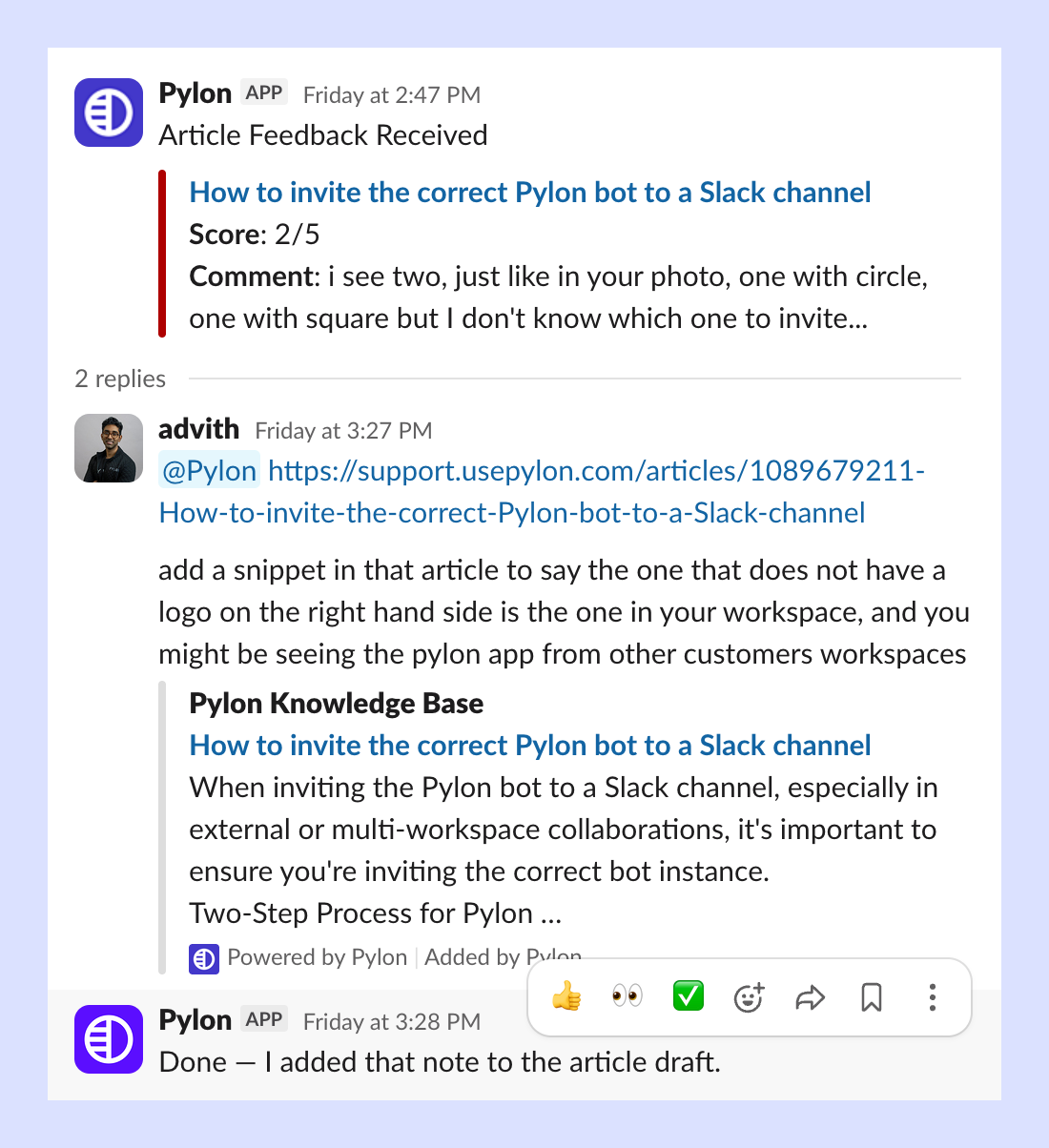
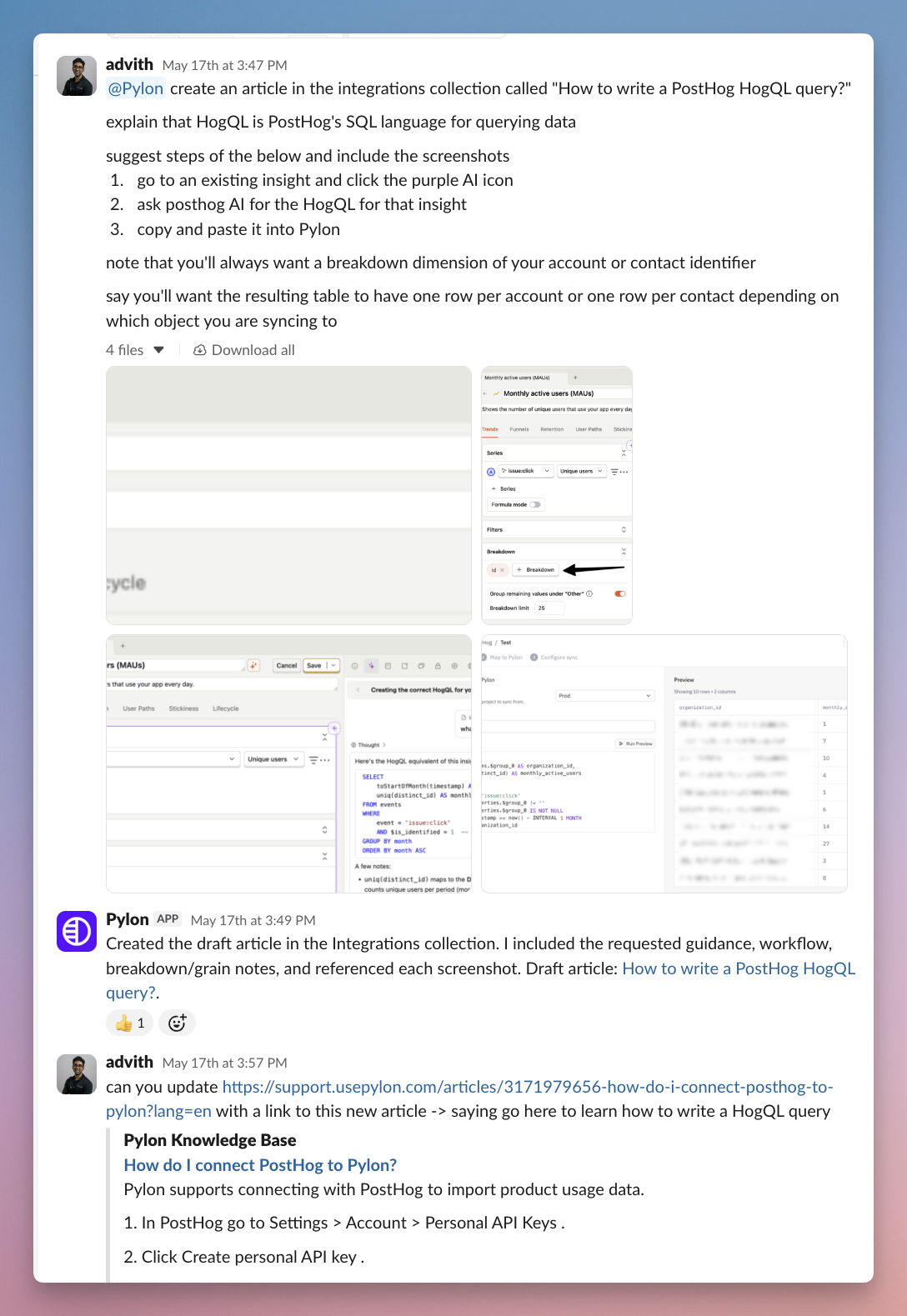
Beyond answering questions, the Slack Agent can help you take actions in Pylon without leaving Slack. This is useful for quick updates that don't warrant opening the Pylon app.
Example use cases:
Create or update a KB article from a Slack conversation
Taking quick actions on issues like changing status or assignee
Log account context directly
Configuration
The Slack Agent is configured on this page. From there you can customize:
Tools: Control which tools the Slack Agent has access to
Skills: Attach skills for structured, repeatable behaviors
For example, you can enable access for your Pylon Slack Agent to access Notion so any questions you ask Pylon in Slack have that context available.
The Slack Agent is free on all plans while in Beta.
Guardrails
Internal only: The Slack Agent only operates in internal Slack channels. It is disabled in Slack Connect (external) channels and cannot be triggered by external users.
Respects permissions: Users Pylon access level will be respected when they are interacting with the Slack Agent.
Tools configurable: Tool access can be fully customized from the Slack Agent page.
Latest Slack Version: If you don't get a response DMing Pylon, please go to your Slack App and reauthorize to get the latest version.