How to Set Up Email Forwarding from Outlook to Pylon
Last updated: March 4, 2025
This guide will help you set up email forwarding from your Outlook account to Pylon, enabling you to manage your support emails through our platform.
Steps to Set Up Email Forwarding
Log in to your Outlook account.
Go to your Outlook settings.
Find the "Forwarding" option. It should be under mail settings.
Enable the "Forward a copy of incoming mail to another address" option.
In the forwarding email field, paste your unique Pylon forwarding address. It will look something like this:
xxxxxxxx-xxxx-xxxx-xxxx-xxxxxxxxxxxx@parse.usepylon.comOptionally, you can choose to keep a copy of forwarded messages in your Outlook inbox.
Click the "Save" button to apply your changes.
Troubleshooting
If you receive an error message stating "Access denied, Your organization does not allow external forwarding"
Ensure external forwarding is enabled in your Microsoft Exchange settings:
Edit
Anti-spam policiesLocate and update the anti-spam outbound policies
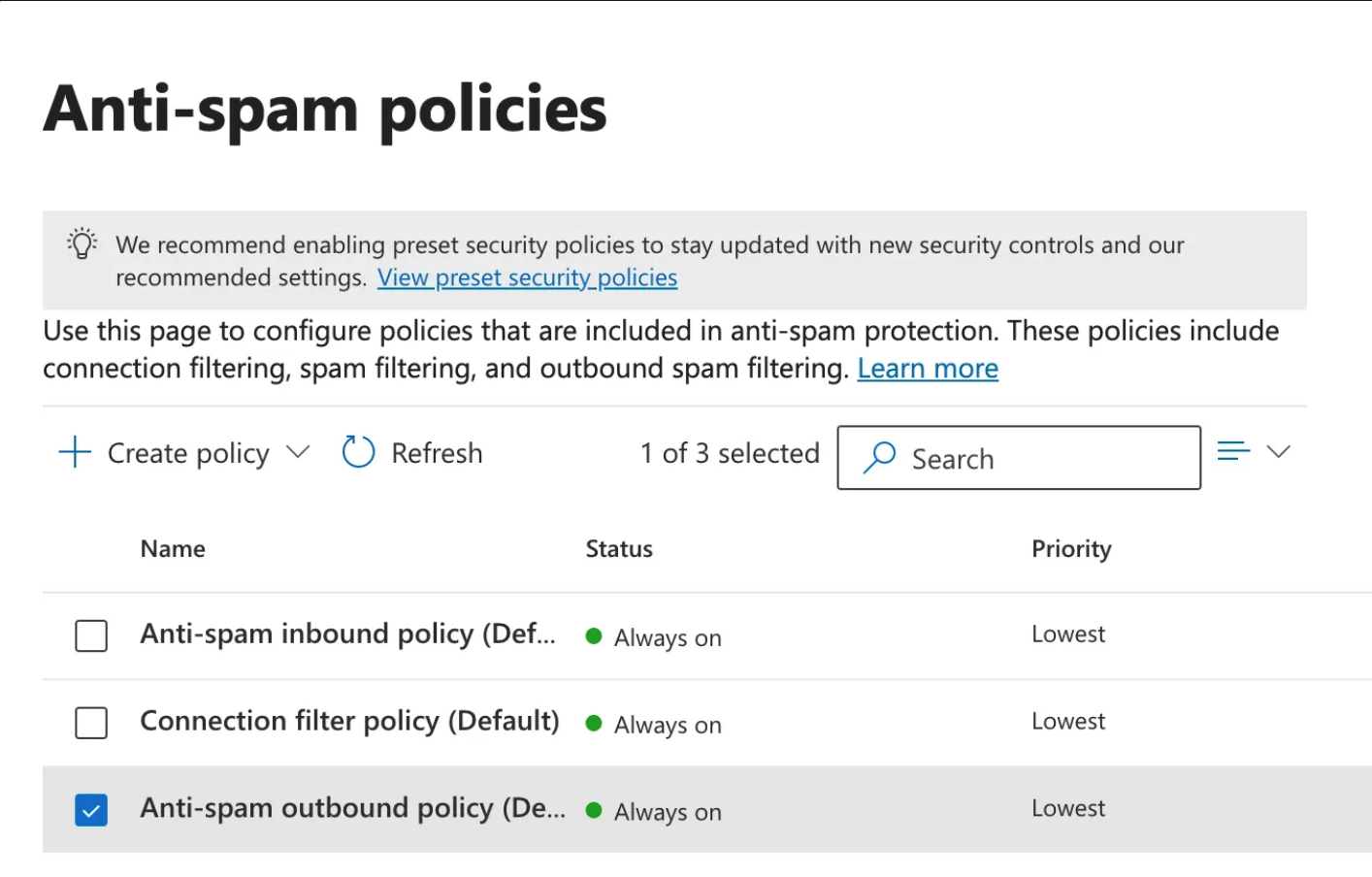
Set Automatic forwarding rules from
Automatic - System-controlledtoOn - Forwarding is enabled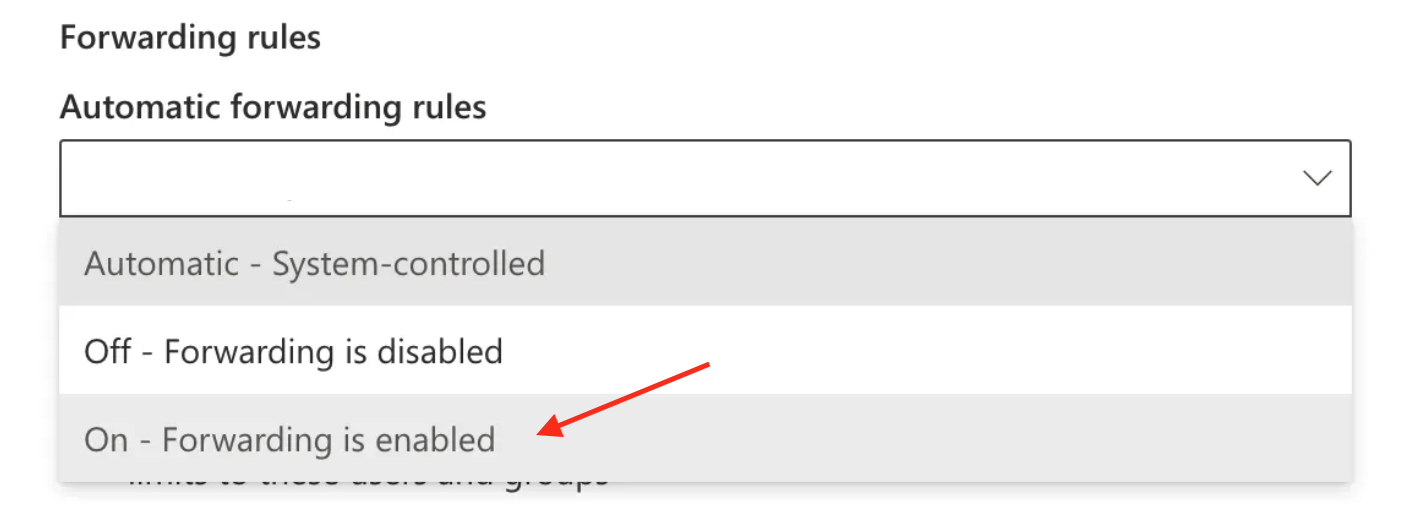
Wait 24-48 hours for the changes to take effect across the Microsoft Exchange system
If you encounter a "Setup failed!" message in Pylon after configuring forwarding in Outlook:
Double-check that you've correctly pasted the entire Pylon forwarding address into the Outlook forwarding field.
Ensure you've clicked the "Save" button in Outlook after entering the forwarding address.
If the issue persists, contact Pylon support for assistance.
Verifying the Setup
To confirm that email forwarding is working correctly:
Send a test email to your Outlook address.
Check your Pylon issues board to see if the email appears as a new ticket.
If the test is successful, you should see the new ticket in your Pylon dashboard.
If you need further assistance or have any questions about setting up email forwarding from Outlook to Pylon, please don't hesitate to contact our support team.