How do I connect to the Pylon MCP Server?
Last updated: October 8, 2026
The Pylon MCP server at https://mcp.usepylon.com provides AI tools access to your Pylon data. The endpoint uses HTTPS, so the connection is protected with TLS. It uses OAuth authentication with your Pylon account.
The application you connect to Pylon's MCP will only have access to data you would have access to in Pylon, and will read and write on behalf of you.
Common Clients
Claude Code
claude mcp add pylon --transport http https://mcp.usepylon.com/Then, in Claude Code, run the /mcp command and select the pylon MCP to authenticate.
--transport http selects MCP's Streamable HTTP transport and stateless request handling; it does not mean that the connection is unencrypted or uses a plaintext HTTP URL. The Pylon endpoint remains HTTPS/TLS-protected.
Claude Desktop and Web
In "Admin Settings", add a custom connector named "Pylon" with URL https://mcp.usepylon.com/
Leave "OAuth Client ID" and "OAuth Client Secret" blank.
Navigate to "Settings > Connectors" and click the "Connect" button next to the Pylon MCP to authenticate.
ChatGPT
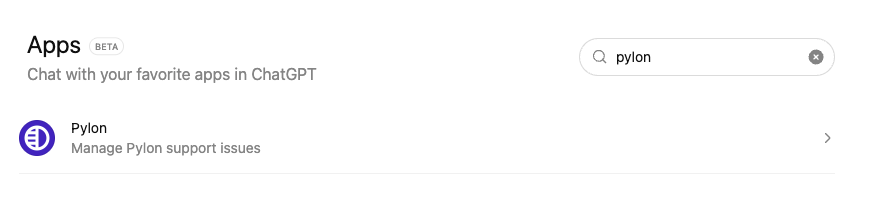
In the Apps tab, search for Pylon and install our native ChatGPT app.
Cursor
Add to your Cursor MCP settings:
~/.cursor/mcp.json :
{
  "mcpServers": {
    ...
    "pylon": {
      "url": "https://mcp.usepylon.com/"
    }
    ...
  }
}
Navigate to "Cursor Settings > Tools & MCP" and click "Connect" next to the Pylon MCP to authenticate.
Authentication Flow
Note: The Pylon MCP server only supports OAuth authentication. API key authentication is not currently available, which may affect usage in remote environments or platforms that don't support OAuth for remote connections.
Current capabilities: The Pylon MCP server provides access to issues, accounts, and contacts, and its available tools can vary by organization and tool-specific feature flag. Registering a tool does not mean it will appear or be usable in every organization. All tool calls are also subject to the authenticated user's applicable Pylon permissions.
The MCP server does not currently support fetching notebook block content directly. To use notebook content in external tools like Claude, manually open the Account Overview notebook, copy the rendered text block output, and paste it into your conversation as context.
1. When the MCP client connects, it will open your browser
2. Log in with your Pylon account credentials
3. Authorize the MCP connection
4. The browser will redirect back and complete the OAuth flow
5. Your MCP client is now connected to Pylon!
Headless or bot-only clients: The Pylon MCP server does not currently support API keys, machine-to-machine credentials, or other non-OAuth authentication methods. If your client cannot complete the browser-based OAuth flow, it cannot connect directly to the Pylon MCP server today.
If you need token-based access for a supported integration or automation, use the Pylon REST API instead of MCP. The REST API accepts Bearer API tokens, but that authentication method does not apply to the Pylon MCP server.
Session Expiry and Reconnecting
OAuth sessions expire periodically. The exact duration varies by MCP client - some sessions last a few hours, others can last several days.
When your session expires, you may see authentication errors or your MCP tools may stop returning results. To reconnect, simply re-authenticate through the same flow you used during initial setup:
Claude Code: Run
/mcpand re-authenticate the Pylon connectionClaude Desktop/Web: Go to Settings > Connectors and click "Connect" next to Pylon
Cursor: Go to Cursor Settings > Tools & MCP and click "Connect" next to Pylon
This is normal behavior and not a bug. If you find yourself needing to reconnect unusually frequently (e.g. multiple times per day), please reach out to support.
Use case examples
Debug an issue end to end: Solve an issue with Claude Code with a prompt like "debug this <pylon link>" and put up a PR for a bug fix
Write a product spec notion doc: Feed it a bunch of issues and use a Claude Code skill to generate a product spec doc based on evidence
Ad hoc analysis: Ask a question about a customer in ChatGPT and leverage data from Pylon in addition to other tools like Notion or Linear
Seat requirement: You need a Member or Admin seat to connect to the MCP server. Viewer and Integration users cannot authenticate and will see an "Authorization failed" error. If you hit this, ask your workspace admin to upgrade your seat type in Settings > Users.