How to set up the Jira Integration
Last updated: June 3, 2026
Step 1: Install "Pylon Integration for Jira" from Atlassian Marketplace
The Pylon integration is listed on Atlassian Marketplace here: https://marketplace.atlassian.com/apps/2798240972
A Jira admin will need to follow the steps from the "Installation" tab, also pasted below:
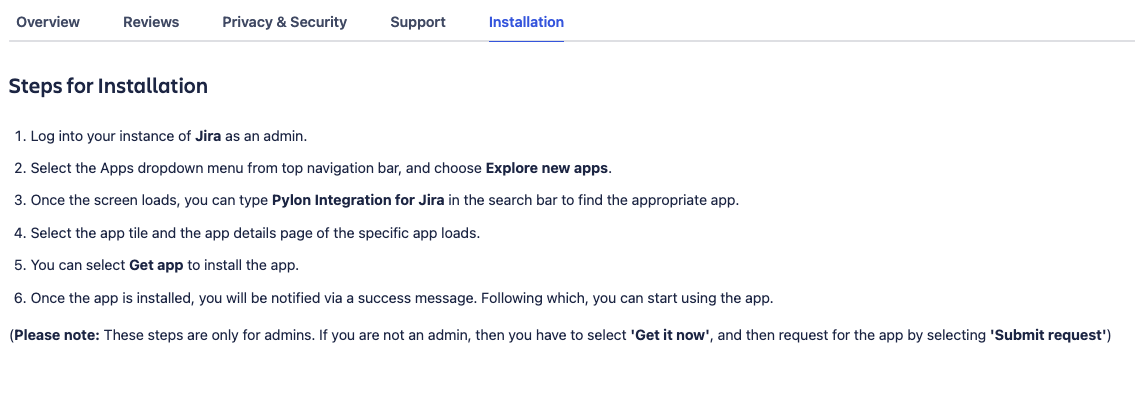
Step 2: Connect Jira workspace <> Pylon organization
Once the app is installed, you'll need to link the Jira instance to Pylon.
From Pylon:
You'll see a modal with the "Organization ID" and a button to "Generate Configuration Token".
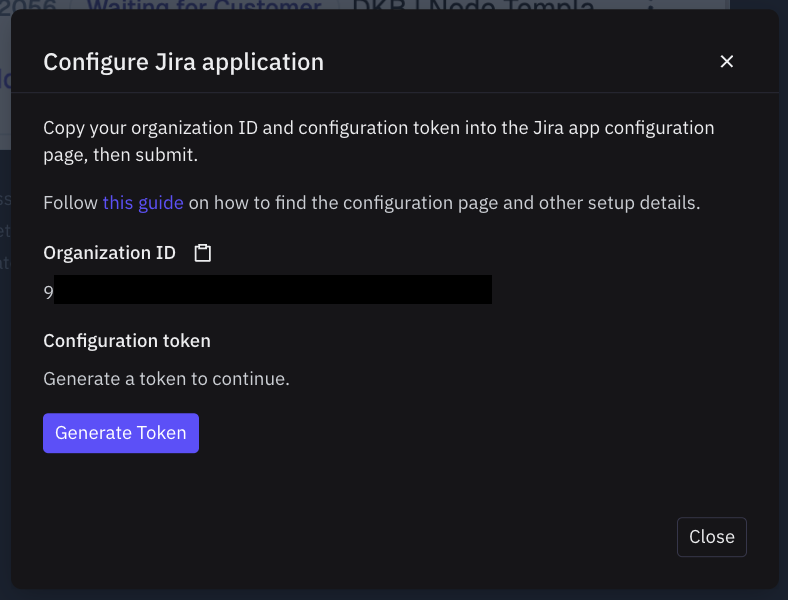
Click "Generate Token"; this is necessary to securely confirm the installation.
From Atlassian:
Navigate to the "Pylon Configuration" page, within "Jira admin settings" -> "Marketplace apps".
From the Jira page:
Sidebar: Apps -> click "Manage apps"
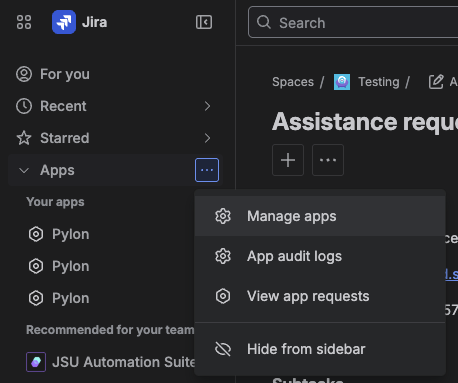
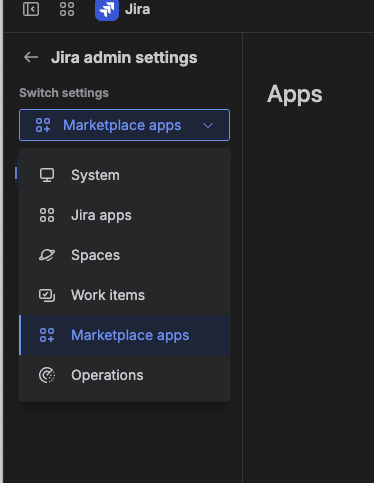
Make sure the sidebar dropdown has "Marketplace apps" selected
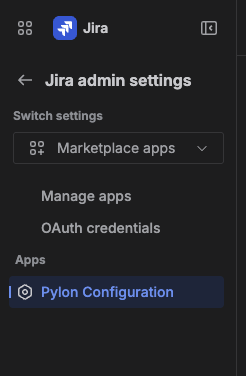
In the sidebar under "Apps", click "Pylon Configuration"
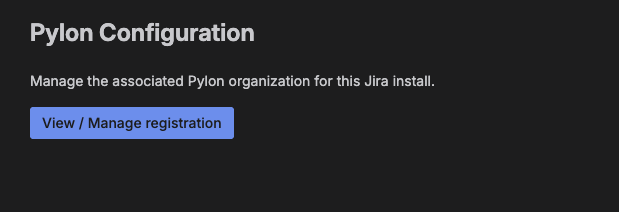
From this page, click "View / Manage registration". On initial setup, you'll see that the "No Pylon installation was found", with inputs for the Pylon fields.
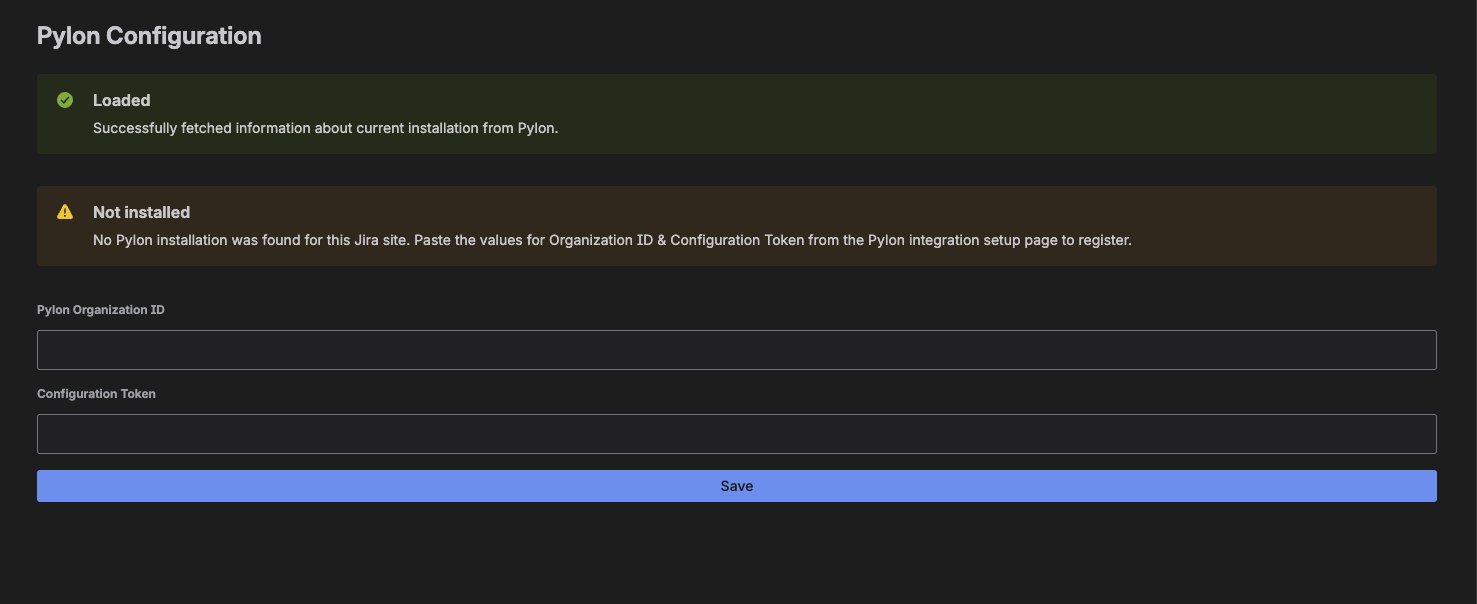
Copy/paste the values from the Pylon modal, and hit "Save".
Once successful:
(1) If you refresh the Atlassian Jira page, clicking "View / Manage" should show the Pylon organization name, as well as the option to clear the installation.
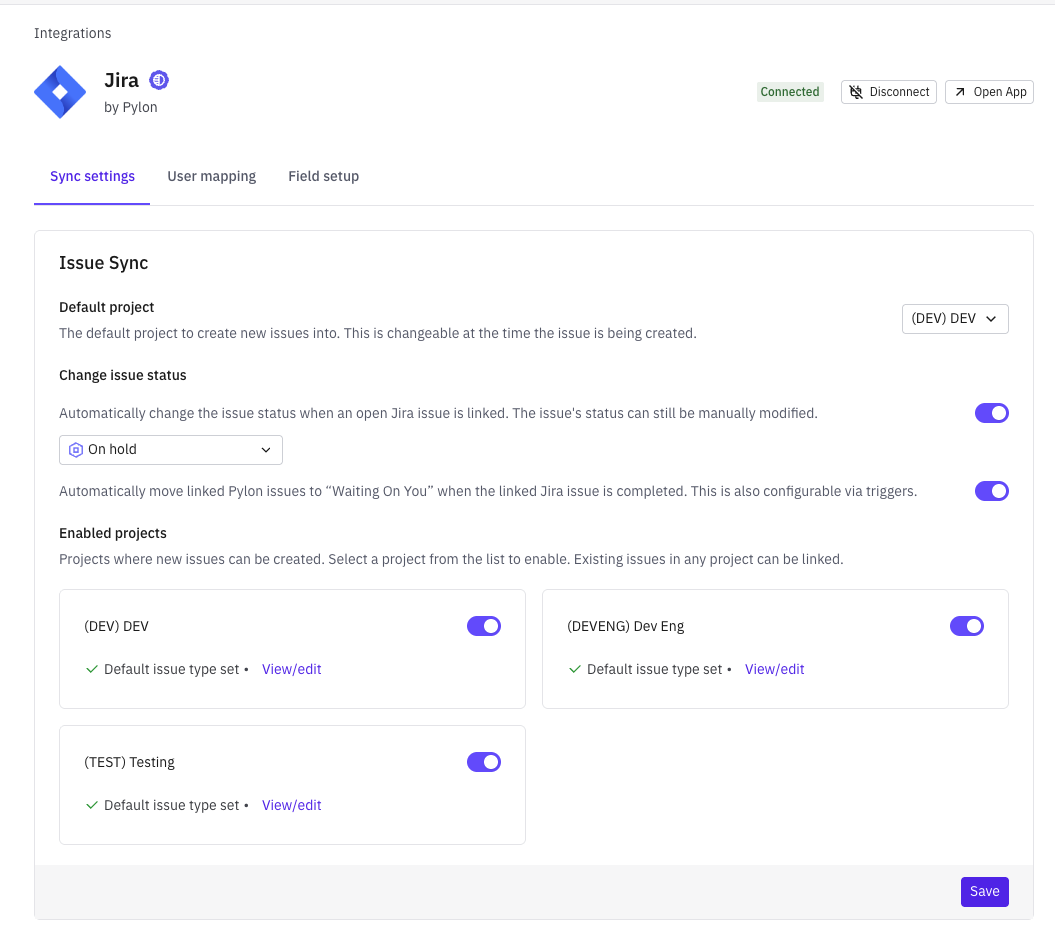
(2) If you refresh the Pylon page, you'll see that Jira is marked as "Connected", and you can update the desired projects/etc.
Select a default project that tickets will be made into. Don’t worry, you can always change this at the time of ticket creation.
Optional: Configure Atlassian app access control
Note that our custom Atlassian app is installed at the site-level, not at the project-level.
Once the Atlassian site is connected to Pylon, use the Pylon Integrations > Jira page to configure which projects are "enabled" - this controls whether Pylon processes events (issue creation, comment creation, etc.) from those respective projects.
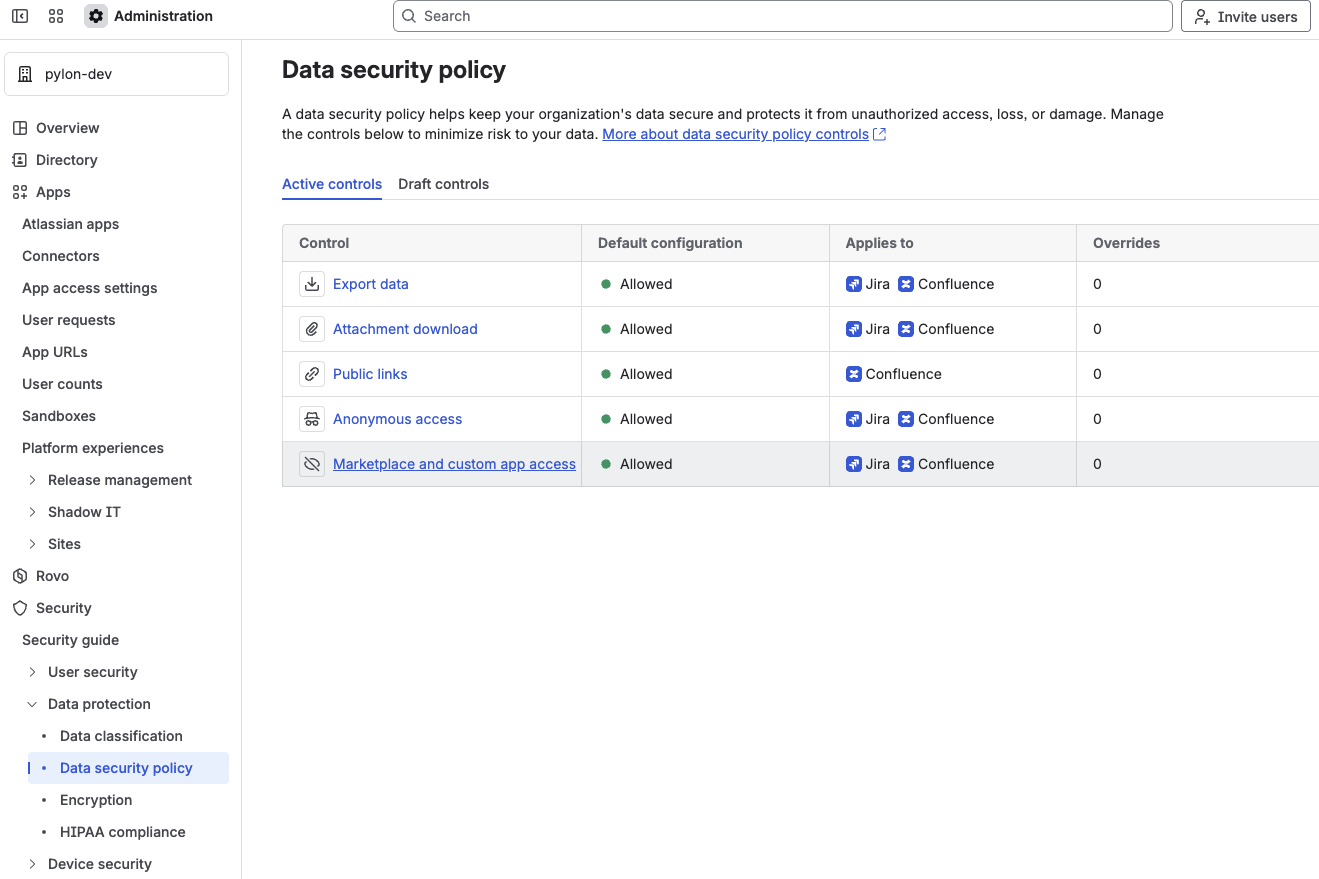
If you want to strictly enforce data access at the Atlassian layer, an Atlassian admin can configure app access controls. This is accessible with the following steps:
Go to admin.atlassian.com -> Security -> Data protection -> Data security policies
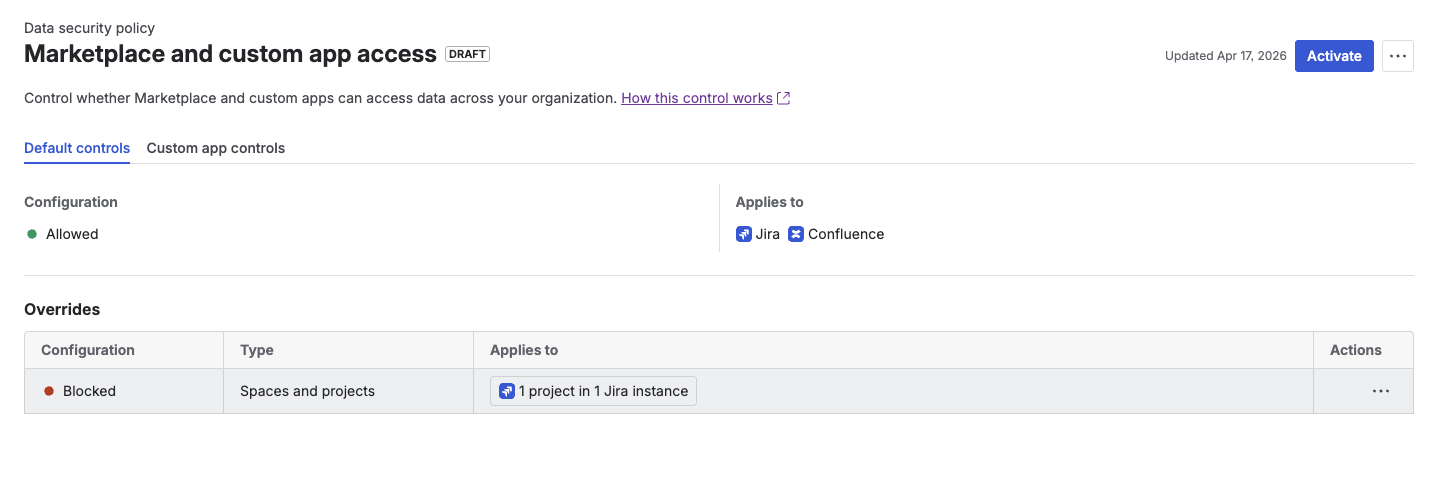
Open "Marketplace and custom app access"
Define a policy which covers specific projects & blocks Marketplace apps from accessing the contained data
When an app access rule blocks Pylon from a project, Pylon can no longer read or write issues, comments, attachments, custom field values, or labels in that project.