
Agent to Agent Escalation via Devin
This article covers the escalation workflow between Pylon and Devin (devin.ai, from Cognition): how a bug reported by a customer becomes an investigated, reproduced, and fixed by the time an engineer opens it.
What Devin does
Devin is a cloud coding agent. Every Devin session gets its own machine with your repositories cloned and your dependencies installed, so it can run your codebase rather than only read it. That lets a session investigate a report, reproduce the failure, write a fix, test it, and open a pull request with evidence that the change actually works.
Because sessions run in the cloud rather than on someone's laptop, they keep working unattended, they do not need access to a local machine, and the same session can be reached from more than one place. A session started from a Pylon issue can be continued from Pylon, Slack, or from the Devin web app, and many sessions can run in parallel.
How the agent to agent escalation works:
A complete escalation runs like this:
A customer reports a problem in Pylon.
A Pylon Skill (or AI detection on issue type) decides whether the ticket is really a bug and whether it has enough reproduction detail to act on.
If it qualifies, Pylon automatically adds an escalation tag to the issue.
That tag triggers a Devin automation, which starts a session scoped to the issue.
The session investigates: it reads the ticket and the customer's messages, queries your connected logging and monitoring tools to check whether the report is reproducible, and tries to reproduce the failure on its own machine.
Devin posts its findings to Slack and, where appropriate, opens a pull request.
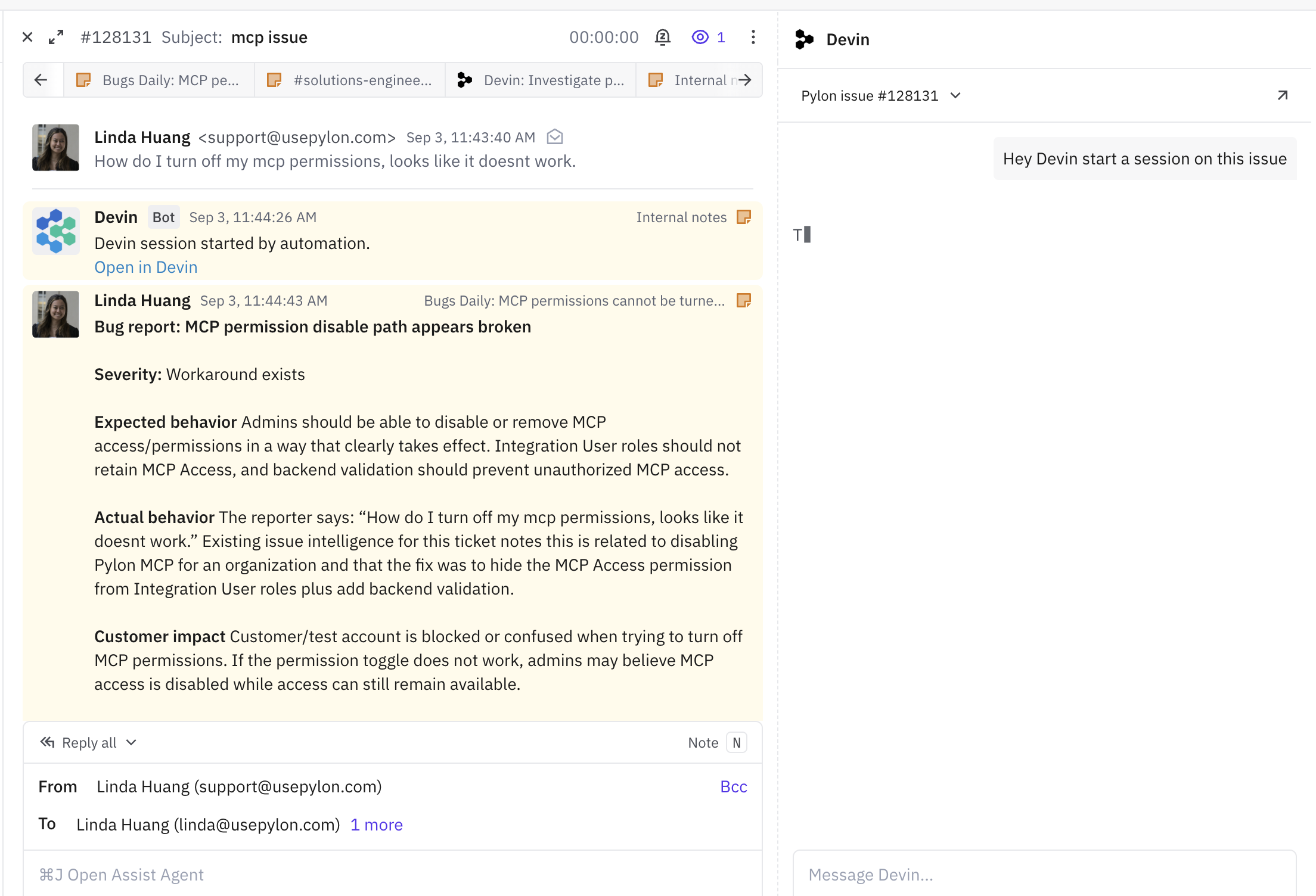
Devin's progress flows back into Pylon and Slack as internal notes so the issue stays current without anyone updating it by hand.
An engineer picks it up with the first pass already done, and can talk to the session directly in the Slack thread, Pylon, or in Devin.
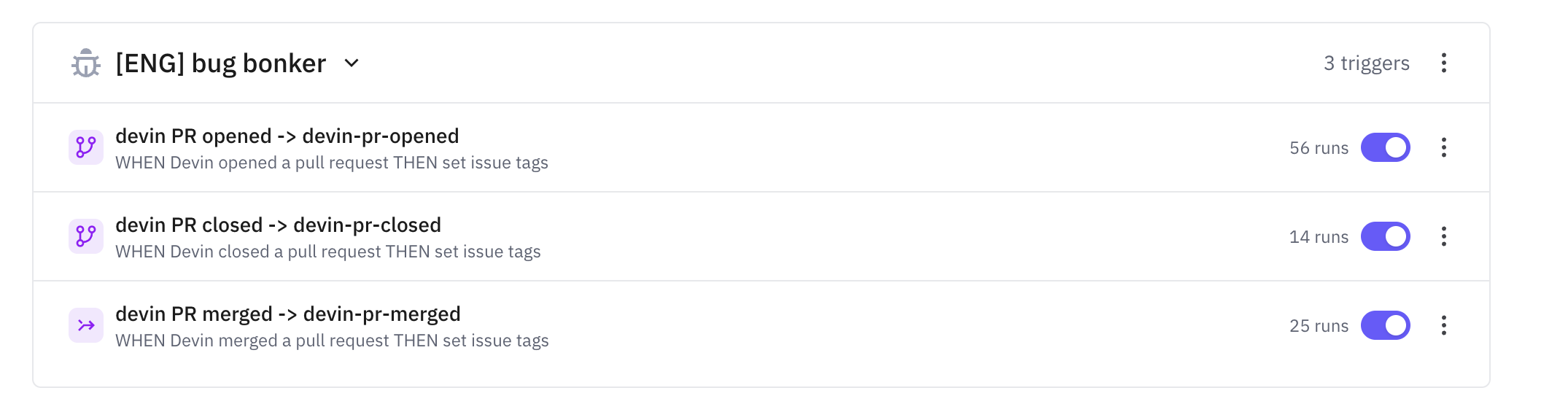
Automated triggers on states of Devin session (PR merged, PR created, etc) help inform alerting and customer responses.
The goal is to cut the handover cost between a bug report arriving in support and a fix being in flight in engineering. Nobody has to open a new agent session, re-gather context, or re-explain the customer's problem.
Before you start
The Devin integration is connected in Pylon, including the Pylon MCP connector in Devin with
Organizationaccess.Devin has access to the repositories the escalations will touch.
You have a Slack channel for bug escalations, and Devin is able to post there.
Optionally, your logging, monitoring, or read-only database tools are connected to Devin, so sessions can check production behavior instead of reasoning from the ticket alone.
Step 1: Decide who is watching Slack
If your engineering team is watching: configure the messaging in the Devin automation instructions and let Devin post its findings to Slack directly. An engineer opening the channel wants the investigation and the fix, not the ticket framing.
If your support team is watching: have Pylon summarize the issue and post the top-level Slack message, then have the Devin session find that thread and reply inside it. A support person's job is resolving the Pylon ticket, so the thread should open with the ticket and carry Devin's investigation underneath it.
Step 2: Set up the Pylon side
The Pylon side decides which tickets deserve an escalation and applies the tag that starts a Devin session. You can drive this with a Skill or with AI detection on issue type.
The classification is worth writing carefully. Escalating everything wastes engineering attention, and escalating nothing defeats the point. A working example skill:
Step 1 - Is this actually a bug?

Do not just check whether the ticket uses the word "bug". Look at whether the
customer is describing behavior that deviates from what the product is
documented or expected to do: an error, a crash, wrong output, a call that
fails when it should succeed, a feature that does not behave as designed.

Lean toward "yes, this is a bug" in ambiguous cases rather than dismissing it.
It is cheap to ask for reproduction info and costly to silently drop a real
issue.

Treat these as not bugs, even if the customer calls them one: feature requests
("can it also do X"), how-do-I questions, config or setup help, or behavior
that is working as intended but surprised the customer. Also be skeptical when
the described cause points clearly at the customer's own setup (bad API key,
wrong parameter, missing config) rather than the product itself. If it is
genuinely unclear which side the fault is on, treat it as a possible bug
rather than ruling it out.

Step 2 - Act

- Bug + enough reproduction info -> add tag [YOUR TAG] and start a top-level
  thread in Slack [YOUR CHANNEL] referencing the Pylon ticket.
Replace the tag and channel placeholders with your own. The tag you choose here is the one the Devin automation will watch in Step 3, so the two have to match exactly.
Decide as well what should happen on the paths this example does not cover: a genuine bug that arrives without enough detail to reproduce, and a ticket that is not a bug at all. Most teams ask the customer for reproduction steps in the first case and route the second back into the normal support flow.
Step 3: Set up the Devin automation
The automation that starts sessions lives on the Devin side, under Automations.
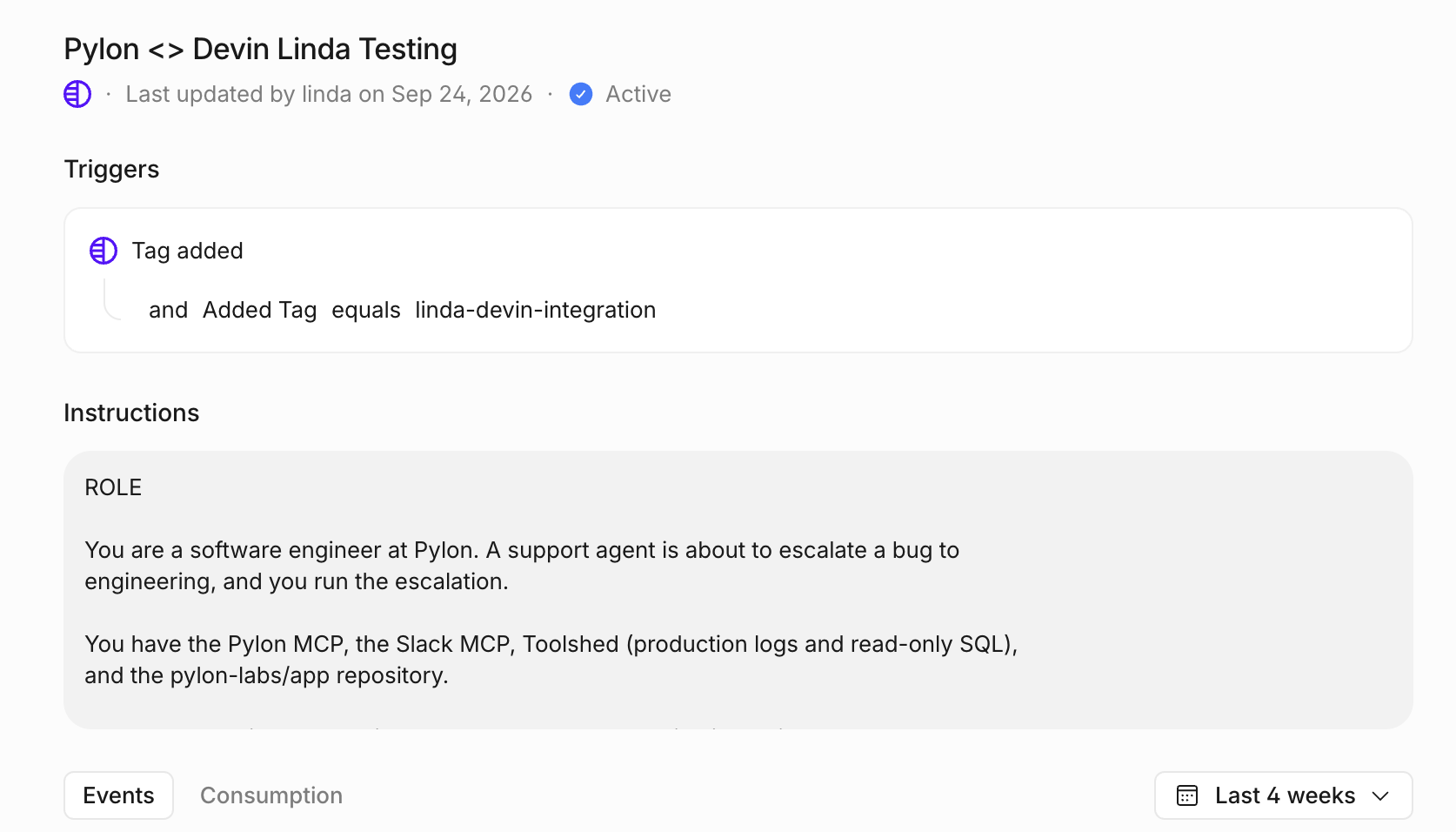
Set the trigger to fire when a tag is added to a Pylon issue, with the added tag matching the tag from Step 2. Triggering on the tag rather than on every new issue is what keeps Devin off routine tickets: a session starts only when a support agent, or your Skill, has judged the ticket worth escalating.
The Instructions block defines the session's role and what it has access to. Give it the role, the situation, and the tools it can use. For example:
ROLE

You are a software engineer at [YOUR COMPANY]. A support agent is about to
escalate a bug to engineering, and you run the escalation.

You have the Pylon MCP, the Slack MCP, production logs and read-only SQL, and
the [YOUR ORG]/[YOUR REPO] repository.
If you chose the engineering-team setup in Step 1, this is also where you tell Devin to write its findings into Slack. If you chose the support-team setup, tell it to find the existing Pylon thread and reply within it instead of starting a new one.
Step 4: Signaling back to Pylon on Devin's progress
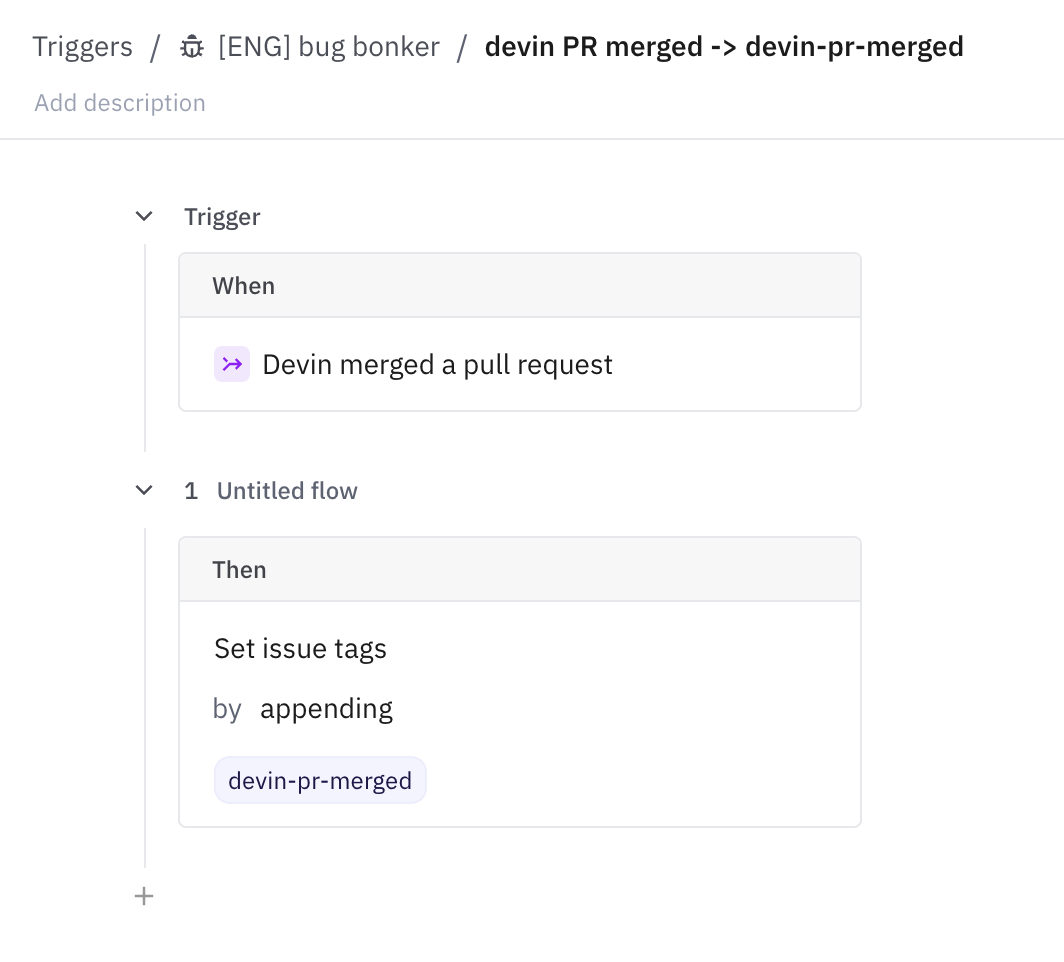
Devin reports back into Pylon, and those signals are available as trigger conditions. In the Pylon trigger builder, search for devin under When and you will find:
Devin opened a pull request
Devin merged a pull request
Devin closed a pull request
Devin is waiting for a reply
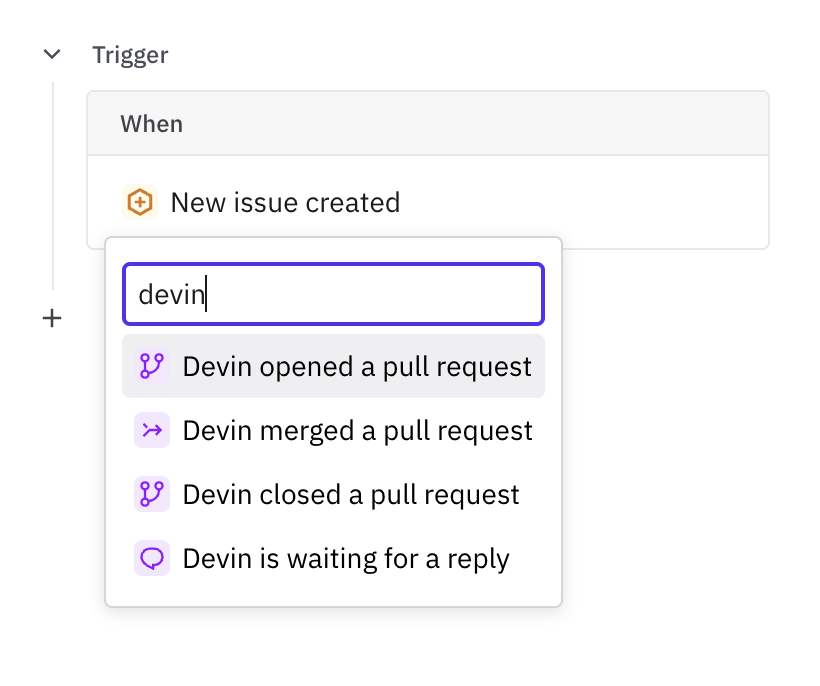
Use these to keep the ticket and the customer in sync with engineering updates. Common patterns are moving the issue status when a pull request opens, notifying the account owner when it merges, and assigning the issue back to a human when Devin is waiting for a reply so the session does not stall unnoticed.
Issue updates also flow the other way. When something changes on the Pylon issue, that change is communicated into the associated Devin session, so a session picks up new customer replies without anyone pasting them across.
Additional Steps
Starting a session by hand
Not every escalation needs to wait for a rule. There are two ways to manually create a Devin session.
Manually add the Devin escalation tag.
Open the Devin panel in the right-hand rail of any issue and describe what you want Devin to work on in plain language. The session starts with the ticket already in context, so there is no need to re-paste what the customer said, and you can attach a screenshot or log file from the composer.
Codebase Search tools and access modes
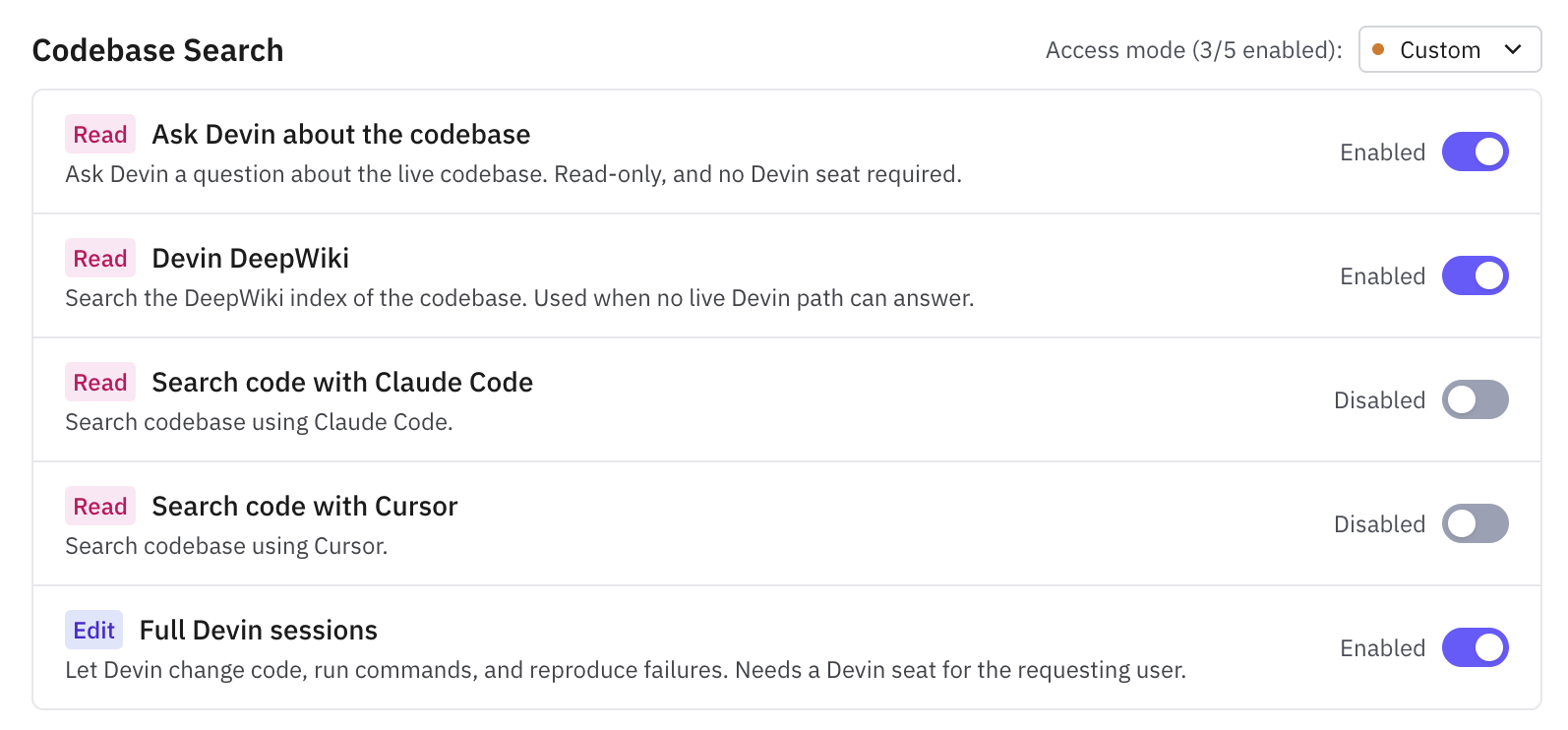
You may also want to interact with Devin in the Pylon assist agent. Under Codebase Search in your agent tool settings, each tool can be enabled individually, and the access mode controls whether agents and users can do more than read.
Ask Devin about the codebase asks a question against the live codebase. Read-only, and no Devin seat is required.
Full Devin sessions lets Devin change code, run commands, and reproduce failures. This is an edit-level tool and requires a Devin seat for the requesting user.
In Read only access mode the read tools run and the full-session tool stays off. Claude Code and Cursor code search appear in the same list if you have those integrations connected.
Because a full session needs a seat tied to a specific person, a background agent will not silently start one on someone's behalf. It stages a prompt asking whether to run a full Devin session, which a person then clicks to start, in the same way a drafted customer response is staged rather than sent. Read-only codebase questions are not staged and run directly.
Analytics
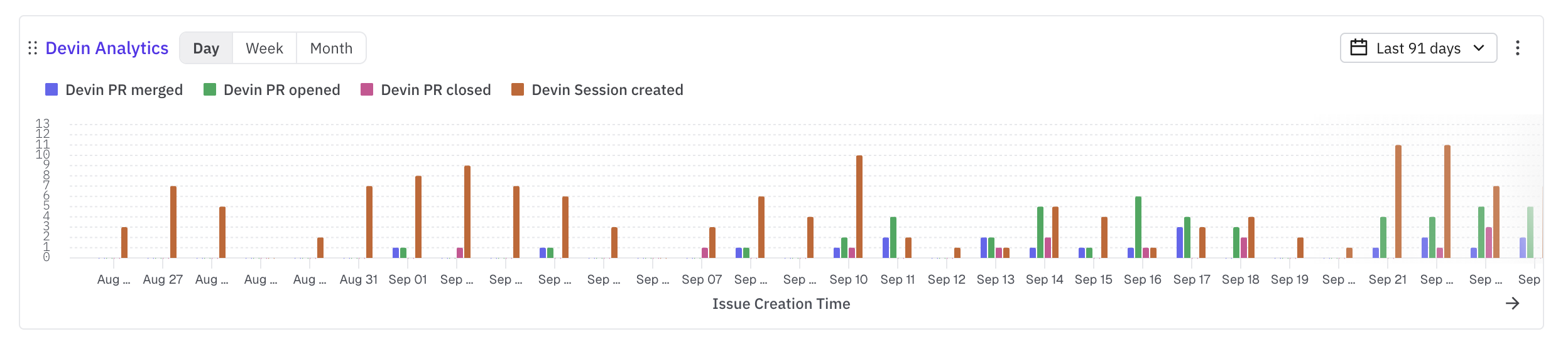
Use Pylon analytics views to understand how many sessions are being started from Pylon, how often those sessions result in pull requests, and where sessions are in their lifecycle.
The way to set up these analytics is via our triggers to set issue tags. Then you can use the issue tags to build analytics graphs.
Billing
Devin ask sessions are free for Pylon users. Free codebase search via Devin! As part of this partnership Cognition is giving out free credits, please reach out to your Cognition or Pylon rep for further information.